Bistone HMS allows you to configure multiple taxes (such as HST, GST, or a Municipal Accommodations Tax) and print them as separate line items on guest invoices and receipts. This is particularly useful for properties that need to clearly show different tax rates to guests or comply with local tax regulations.
Note: The following steps use Canada (HST and MAT) as an example. You can adapt these settings for any tax type or country.
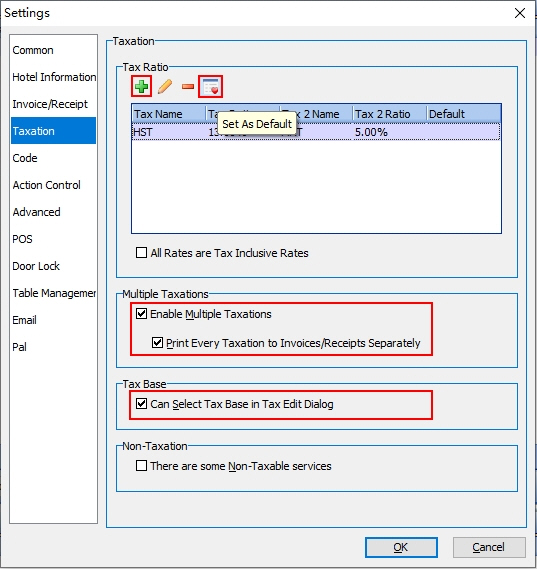
Step 1 - Enable Multiple Taxations and Separate Printing
- Go to Settings > Taxation.
- Under Multiple Taxations, check the box Enable Multiple Taxations.
- Then check the box Print Every Taxation to Invoices/Receipts Separately.
This ensures each tax (e.g., HST, MAT) appears as a distinct line item on the receipt.
Step 2 - Enable Tax Base Selection
- Still under Settings > Taxation, find the Tax Base section.
- Check the box Can Select Tax Base in Tax Edit Dialog.
This feature allows you to use only the Room Total as the tax base when setting up MAT, so taxes are calculated based on room charges only, not on other services.
Please refer to the screenshot below for Step 1, Step 2, and Step 4:
Step 3 - Add Your Tax Rates
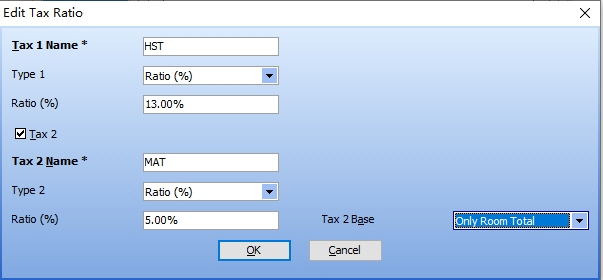
- In the Taxation settings, locate the Tax Ratio section and click the + (Add) button.
- Fill in the details as shown in the screenshot below - for example, enter tax name (e.g., "HST" or "MAT"), ratio (percentage), and optionally select the tax base.
Step 4 - Set Default Tax (Optional)
If your property always applies the same combination of taxes (e.g., HST + MAT), you can set this combination as the default:
- In the Tax Ratio list, select the tax record(s) you want as default.
- Click the Set as Default button (a button with a red heart in the lower-right corner).
This will automatically apply these taxes to all new reservations, saving you time and reducing errors.
Result: Once configured, each tax will appear separately on guest invoices and receipts, clearly showing the MAT amount alongside other taxes.