1 Add A Service
i) Go to Service Management
Section and Click Add
Button, as Figure 1 shows (notice the red box)
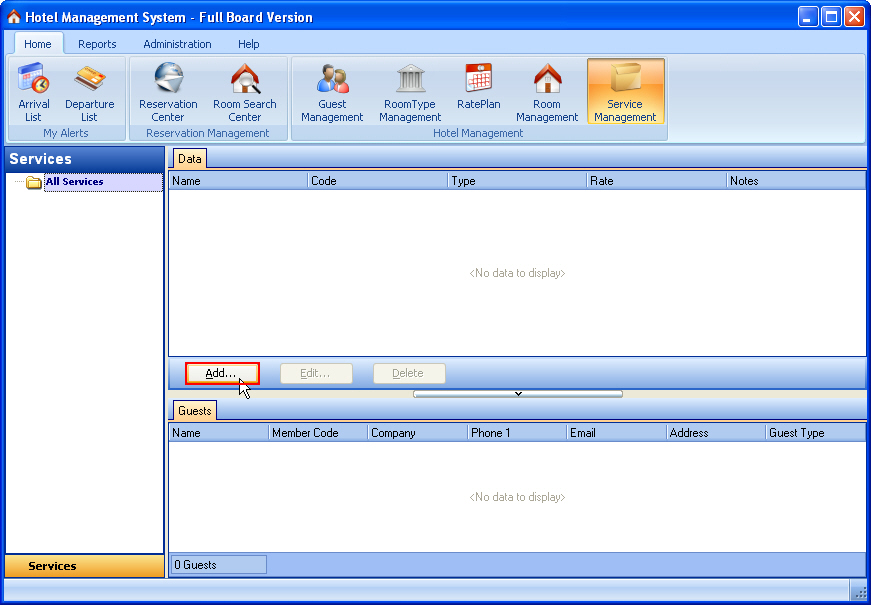
Figure 1 Click Add
Button
ii) Enter service name and click service type button,
as Figure 2 shows
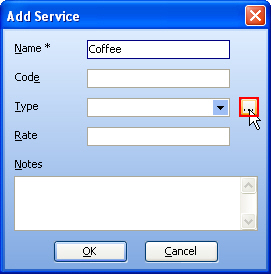
Figure 2 Edit Service
Dialog
iii) Click Add
Button to create a new service type, as Figure 3 shows

Figure 3 Service
Types Dialog
iv) Enter service type name and then Click OK
Button, a new service type is added to Service
Type List, as Figure 4, 5 show
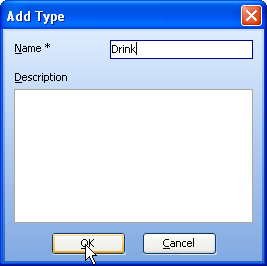
Figure 4 Edit Service
Type Dialog
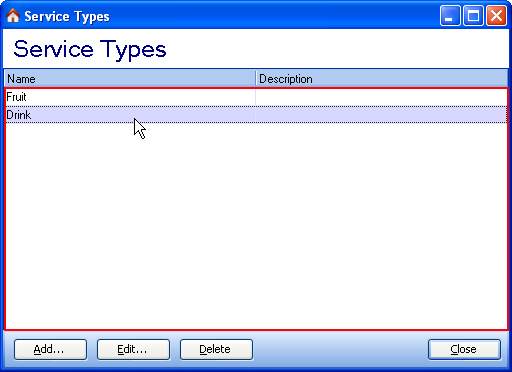
Figure 5 Service
Type List
v) Select the new service type, as Figure 6 shows
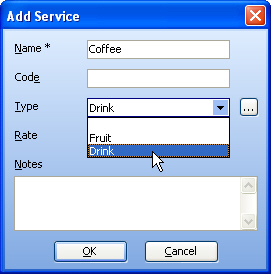
Figure 6 Select
Service Type
vi) Then Click OK
Button, the service type is added to the Left Service
Groups and the service is added to Right
Service List,
as Figure 7 shows
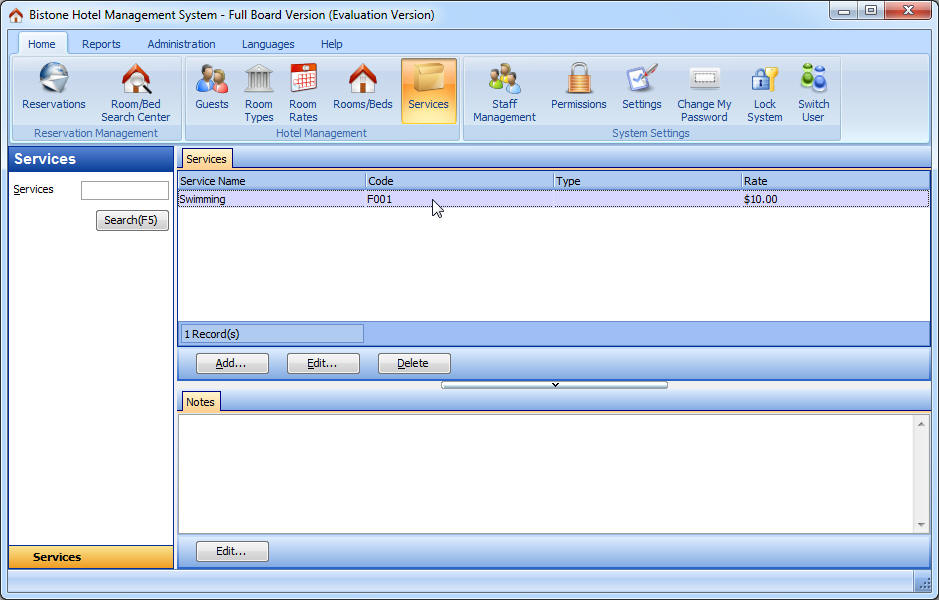
Figure 7 Service
List
|


 Hotel
Management System Quick Start
Hotel
Management System Quick Start